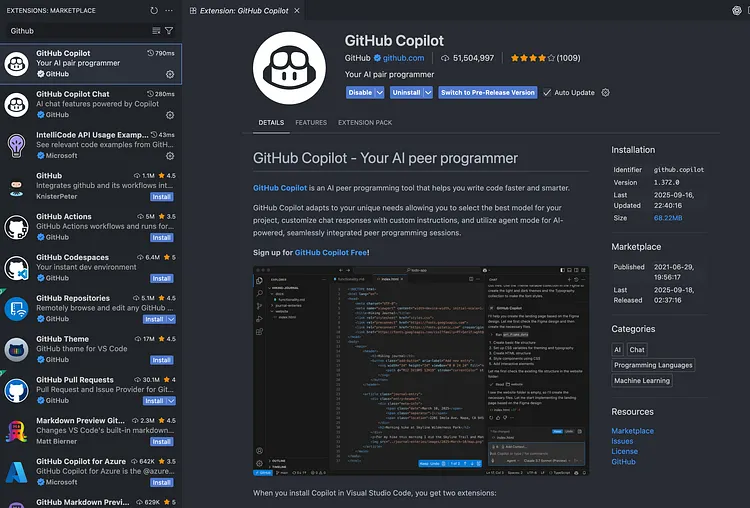
🔍 Step 1: Install the GitHub Copilot Extension
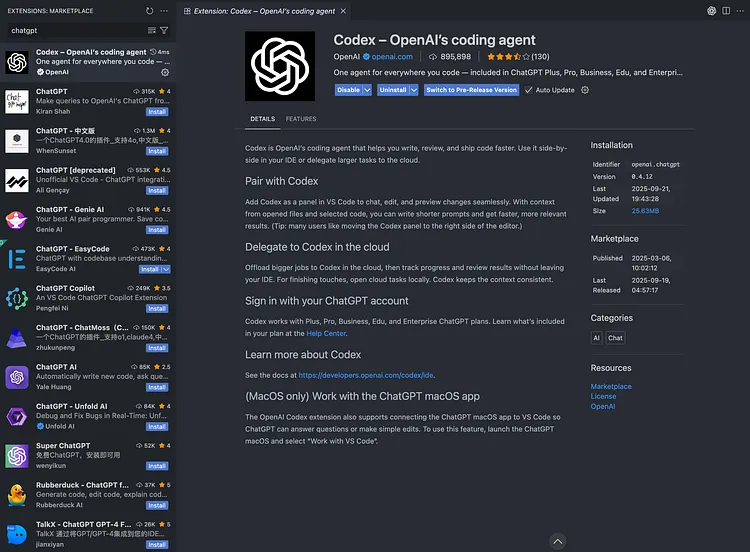
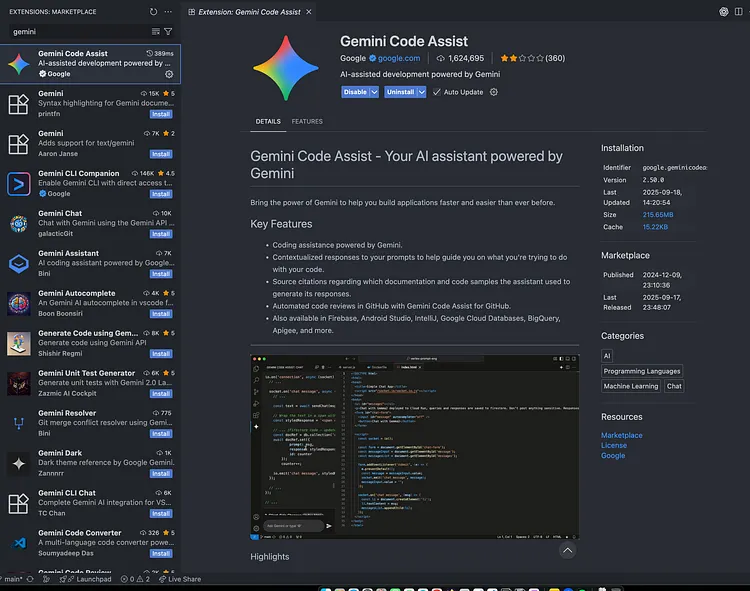
- Open the Extensions Marketplace in VS Code (click on the Extensions icon on the left sidebar).
- In the search bar, type GitHub Copilot or Gemini or ChatGpt.
- Click Install.
🔑 Step 2: Sign in to GitHub
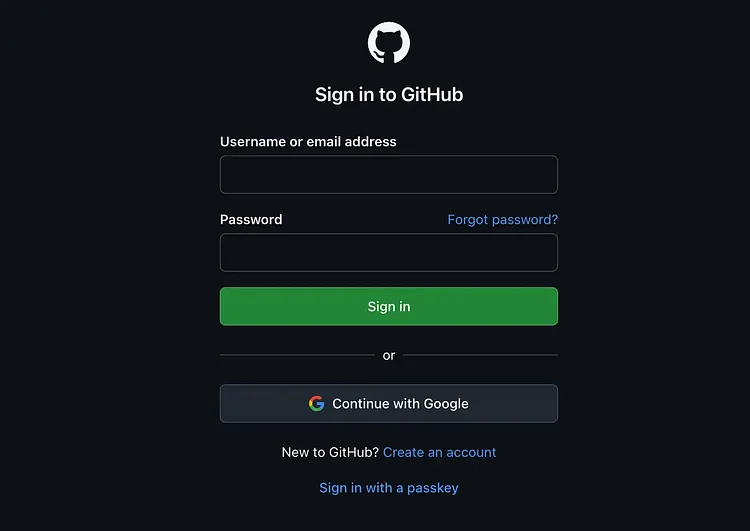
Once installed, you’ll need to sign in to GitHub to activate Copilot.
- Click Sign in when prompted.
- Authorize VS Code to use your GitHub account.
- If you’re on the free trial or subscribed, Copilot will be ready to roll.
⚡ Step 3: Start Vibe Coding
- Open a new file in any programming language (JavaScript, Python, React, etc.).
- Start typing a function, comment, or variable name.
- GitHub Copilot will suggest code snippets in gray text.
- Press Tab to accept, or Ctrl + ] / Ctrl + [ to cycle suggestions.
Copilot will instantly generate a boilerplate function for you.
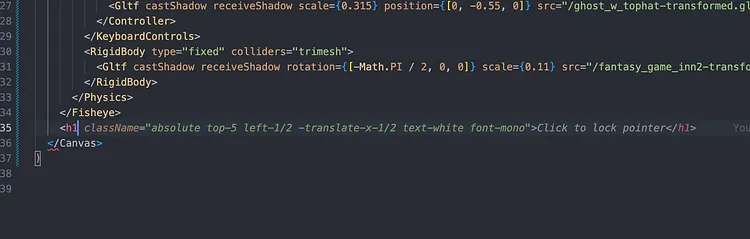
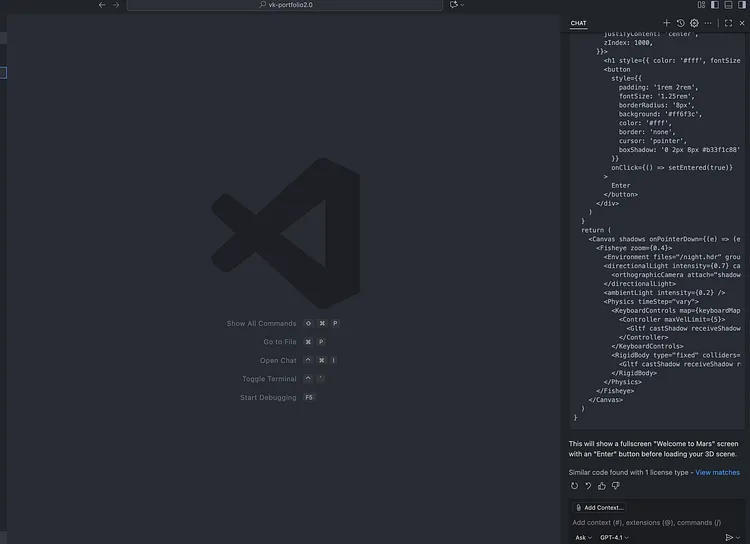
You can chat with Copilot and get a code snippet or suggestion.
Open chat - Using top search panel right side chat icon click - Chat panel open on left side. [Shift + Command + I] (MacOS)
✅ Final Thoughts
GitHub Copilot in VS Code is a game-changer for developers of all levels. Whether you’re building a quick prototype, exploring new frameworks, or writing production-ready apps, it makes coding smoother and more enjoyable.
So next time you sit down to code — set the mood, launch VS Code, and let Copilot take you into vibe coding mode.